Open a map
Your administrator sends you a link. When you open the link, the map is ready to use. You do not install or configure anything.
Sign in
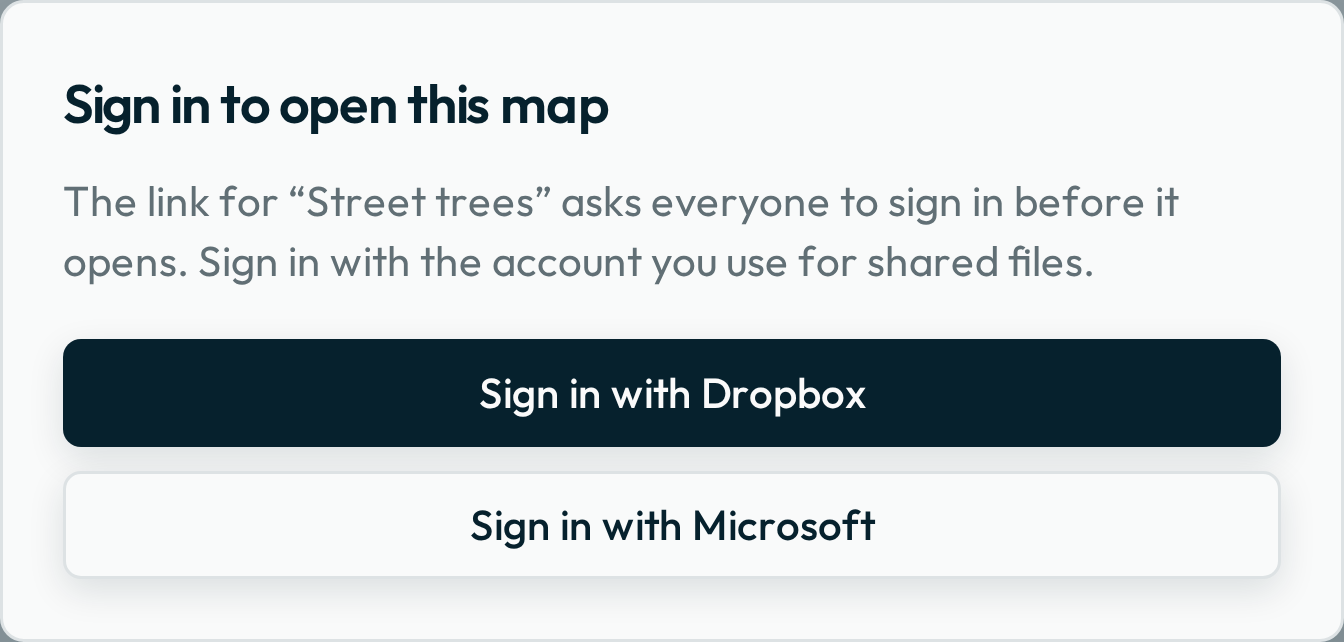
On some maps, Groundwork asks you to sign in first. To sign in, press Sign in with Dropbox or Sign in with Microsoft. Use your work account for shared files. Groundwork saves the sign-in on this device, so the map opens without a sign-in next time. If you signed in with the wrong account, see Troubleshooting.
Start with your location
On some maps, Groundwork asks for your location before it shows the map. To give your location, do one of these:
- Press Address or coordinates, then type an address.
- Press On the map, then click the map.
- Press Device location.
On some of these maps, the list then shows the nearest features first. To skip the question, press Show the map anyway.
The parts of the screen
The map canvas fills the window, and the Data panel is over its right side. The map shows where things are. The panel shows what they are. On a phone, the map fills the screen, and the panel is a sheet at the bottom. Drag the sheet upward to see more of the panel.
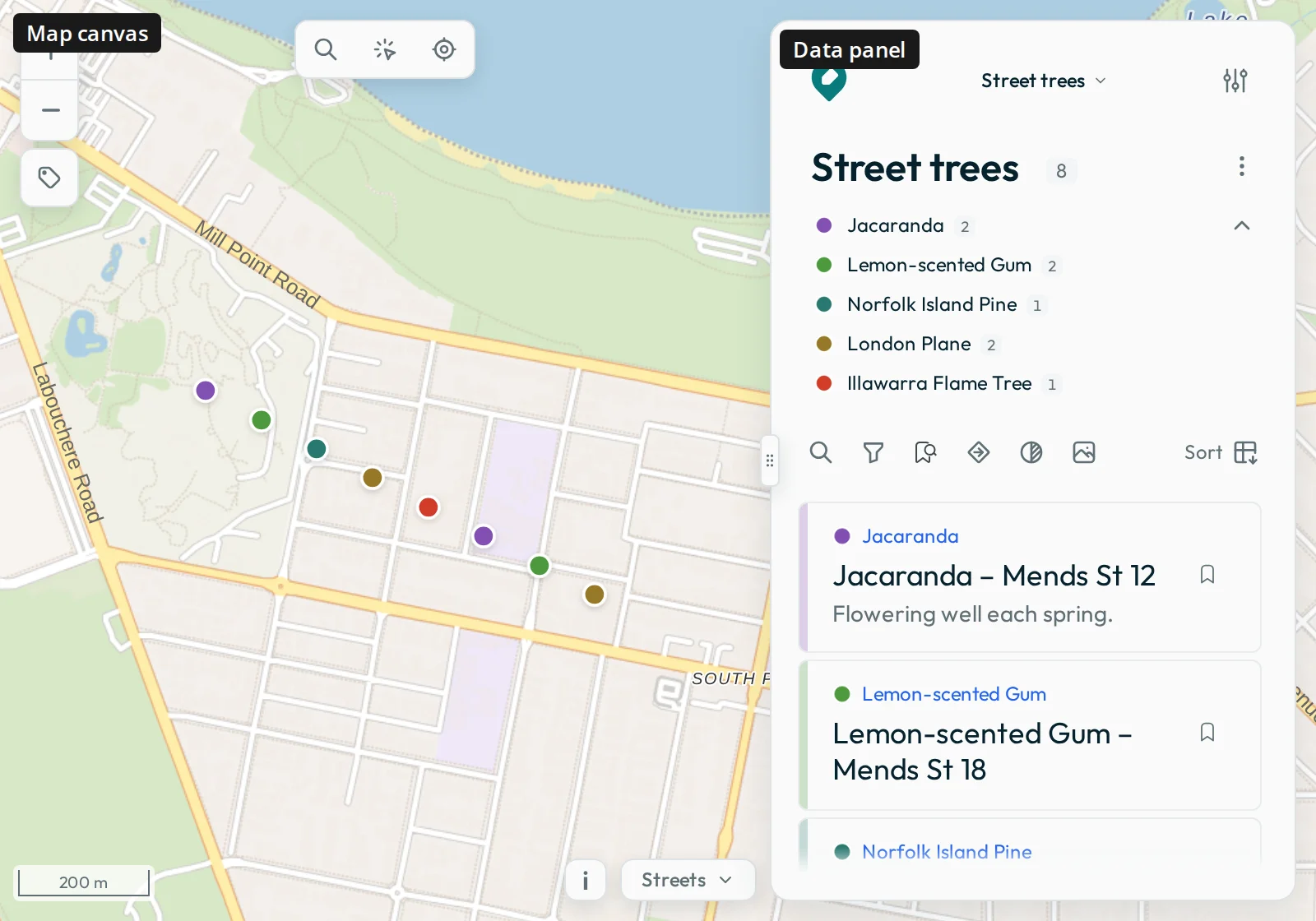
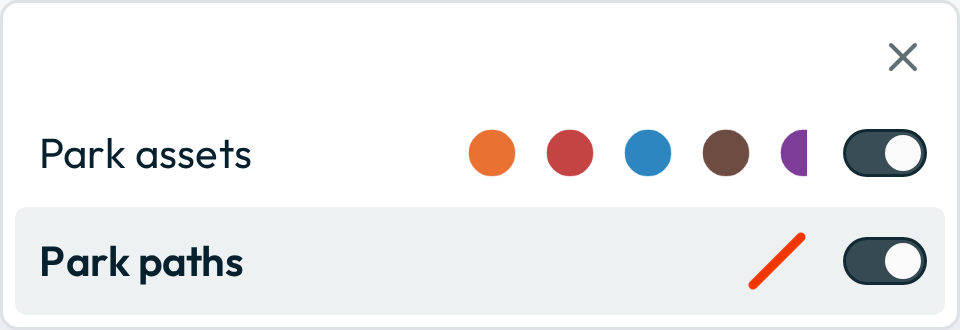
- Your layer. Your map’s data is in a layer, such as a layer of trees. The features of the layer are in the list in the panel. If the map has more than one layer, click the layer name at the top of the panel to choose a different layer.
- The location box is at the top of the map. Use it to set a location from an address, a place that you click on the map, or your device’s position. Groundwork measures Nearby distances and routes from the pin at that location.
- The basemap. To change between a street map and aerial imagery, use the picker in the bottom-right corner of the map.
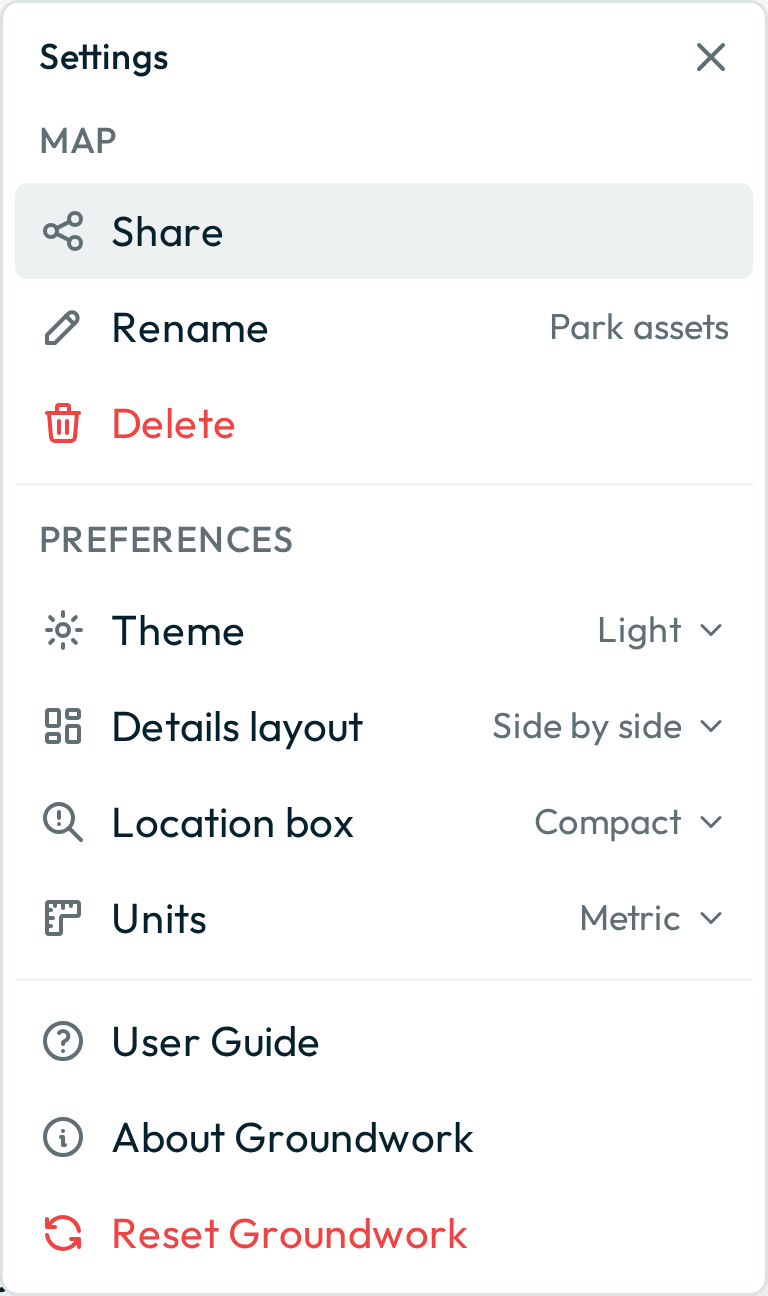
- The settings menu. To open it, press the settings button at the top of the panel. Use the menu to share, rename or delete the map, and to set preferences such as theme and units. Groundwork saves your preferences on your device.
- Share a view. To show your current view to a colleague, press Share in the settings menu. Groundwork makes a link that you can send. To see what the link includes, read What the link includes.
View-only maps
On a view-only map, you can browse, search, filter and download. Groundwork does not show the editing tools. If you need to edit, ask the person who sent you the link.
Keep the link
If you open the link again later, Groundwork updates the map that you already have. You do not need a new link to see new data. Groundwork reads the map’s data source each time that you open the link or reload the page. So the map already shows the additions and changes that other people made.
Groundwork needs an internet connection. If you reload the page with no connection, Groundwork does not open.
Groundwork then opens in its own window, and the map has more space. In Safari, choose Add to Home Screen. In Chrome, choose Install app.
Next: Explore features.