Explore features
A feature is one thing on the map, such as one tree or one park.
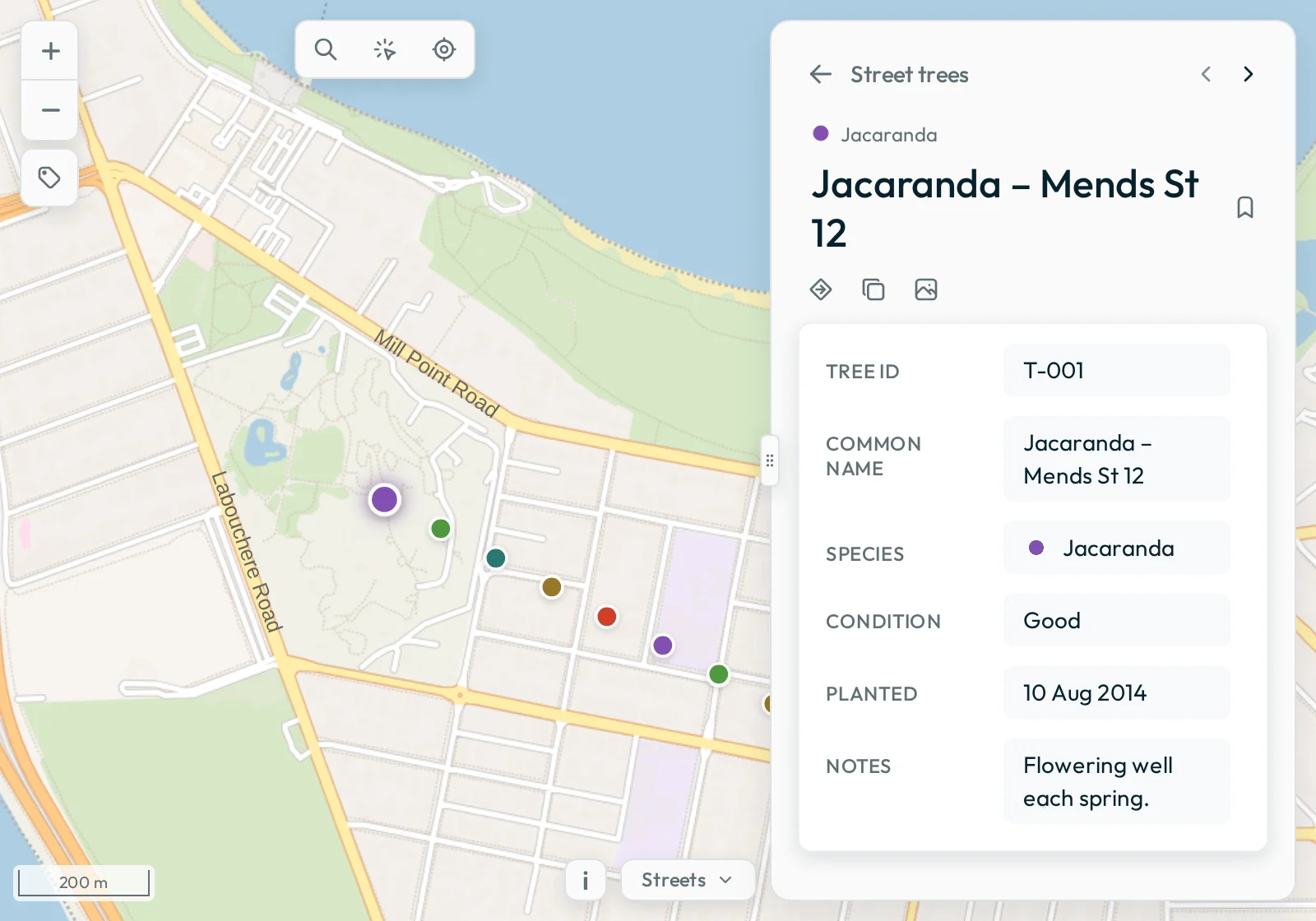
Select a feature
To select a feature, click it on the map or click its row in the list. Groundwork highlights the feature on the map and opens its details in the Data panel. When you select a feature from the list, the map frames that feature. On a touch screen, tap instead of click. When you tap near a small feature, Groundwork selects it, so you do not have to tap exactly on it.
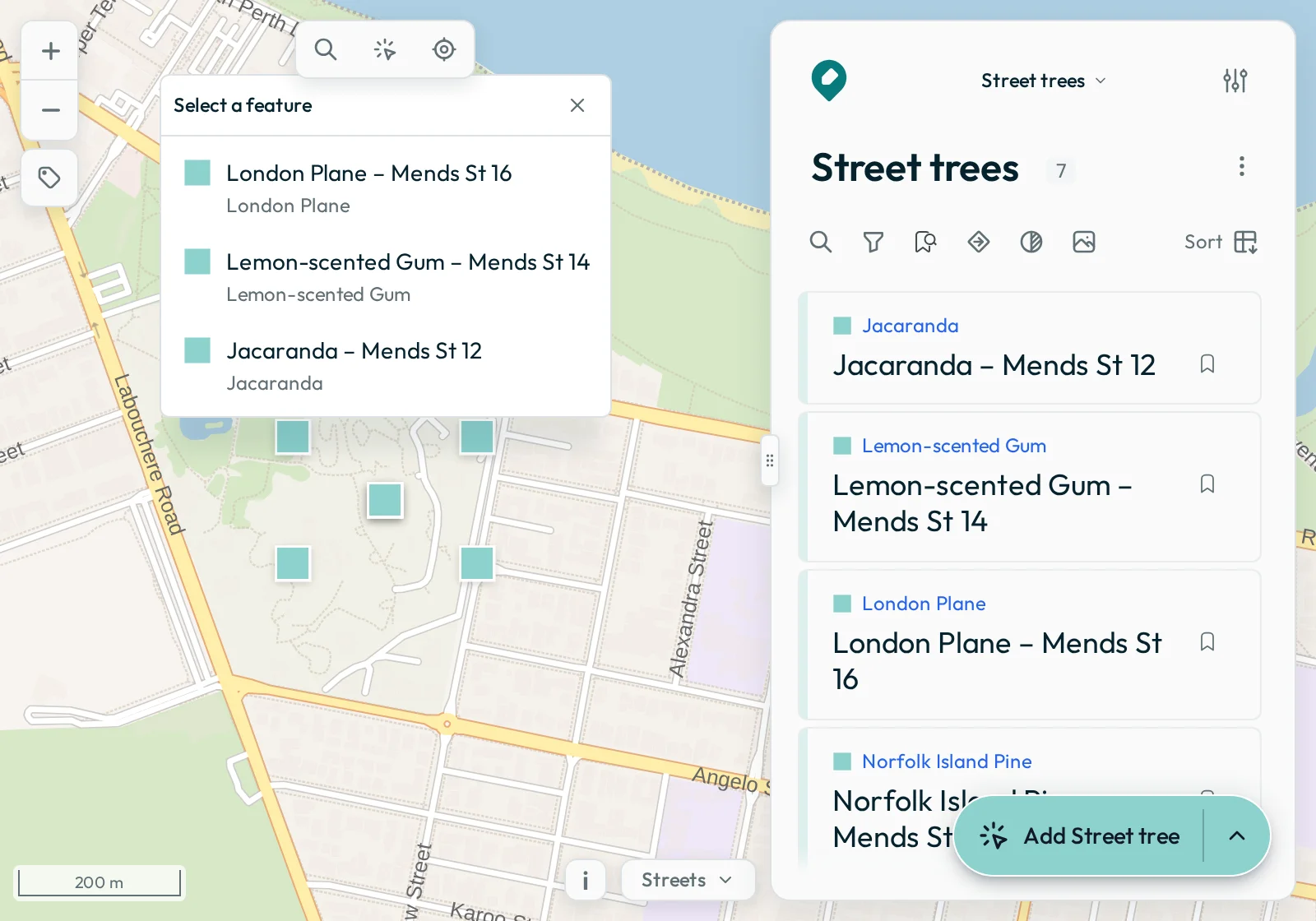
If features are on top of each other, click the place where they overlap. Then choose a feature from the small list that opens.
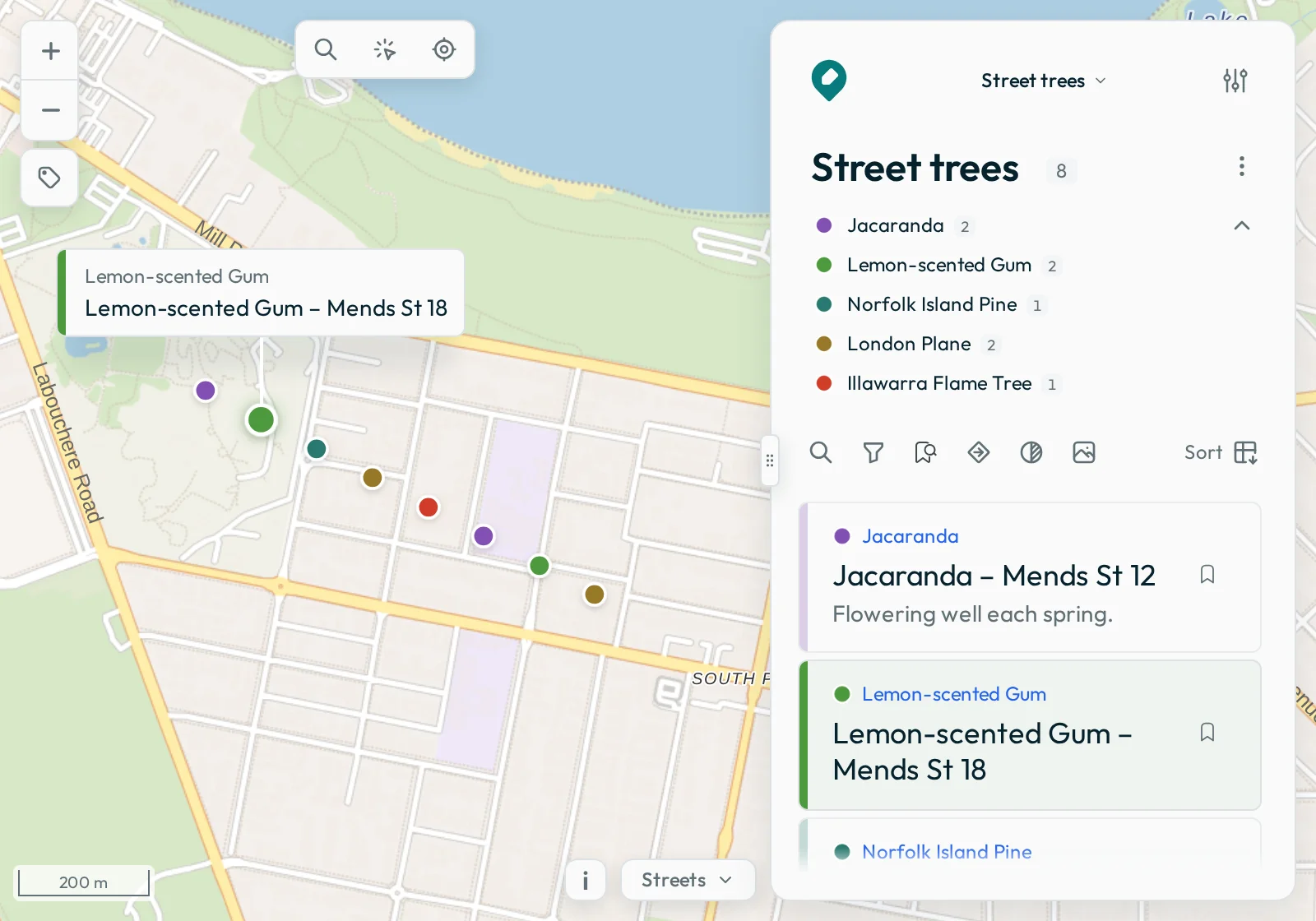
Move the pointer over a feature on the map, or over its row in the list. A small copy of the row then shows above the feature. A line connects the copy to the feature. On a touch screen, the copy does not show.
Search, sort and filter
You can filter, show only bookmarks and use Nearby at the same time. The controls are above the feature list: the search button, Filter, Bookmarks, Nearby and the sort menu. For example, you can show your bookmarked trees of one species, nearest to your location first.
Search
Press the search button, then type a word to find it anywhere in a feature’s details. For example, type “Eucalyptus” to find every tree that has that word in its record. Groundwork searches only the features that the list shows. So while a filter, the bookmarks or Nearby is on, a search does not find a feature that the list hides. Groundwork also searches related records. When you open a result from a related record, Groundwork shows that record.
Sort
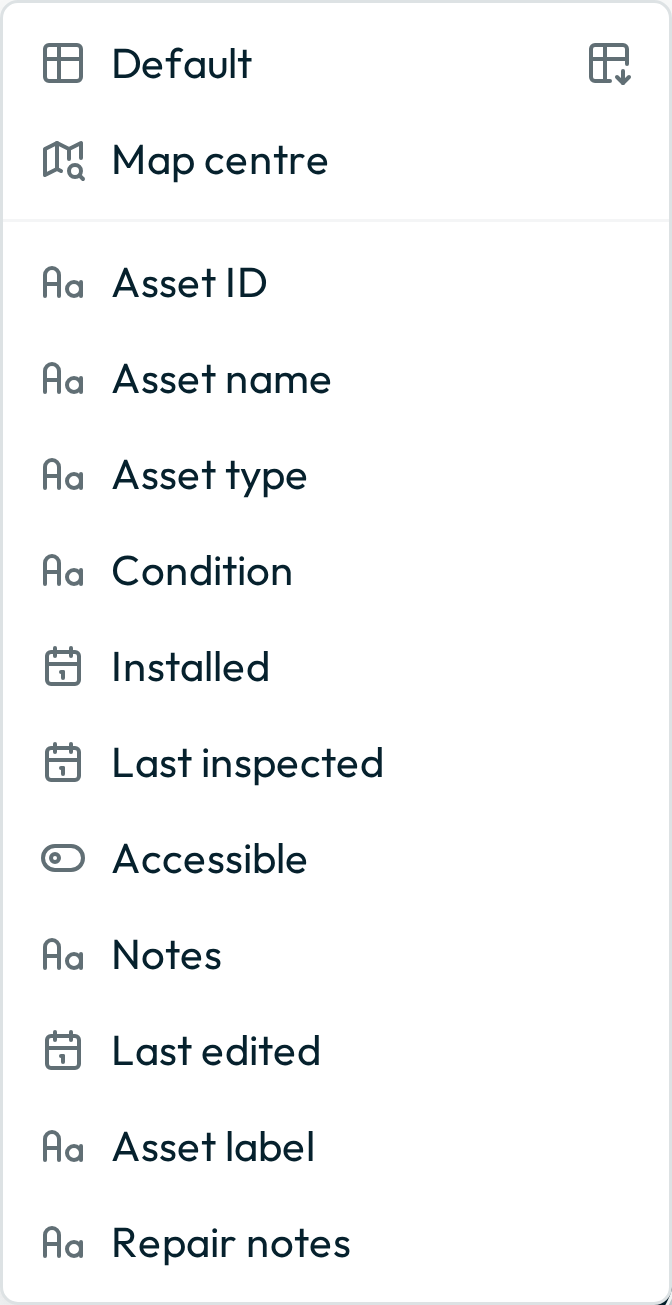
Use the sort menu to change the order of the list. You can sort by any field, or by Map centre, which is the distance from the centre of the map. A line layer also has Length, and a polygon layer has Area.
Filter
Press Filter to see the fields that you can filter by. Choose a field to add a button for it above the list. Then tick the values to keep, such as one species of tree. For a date field, choose a period such as Today or This week, or a range of days. For a number field, drag the slider or type the lowest and highest values to keep.
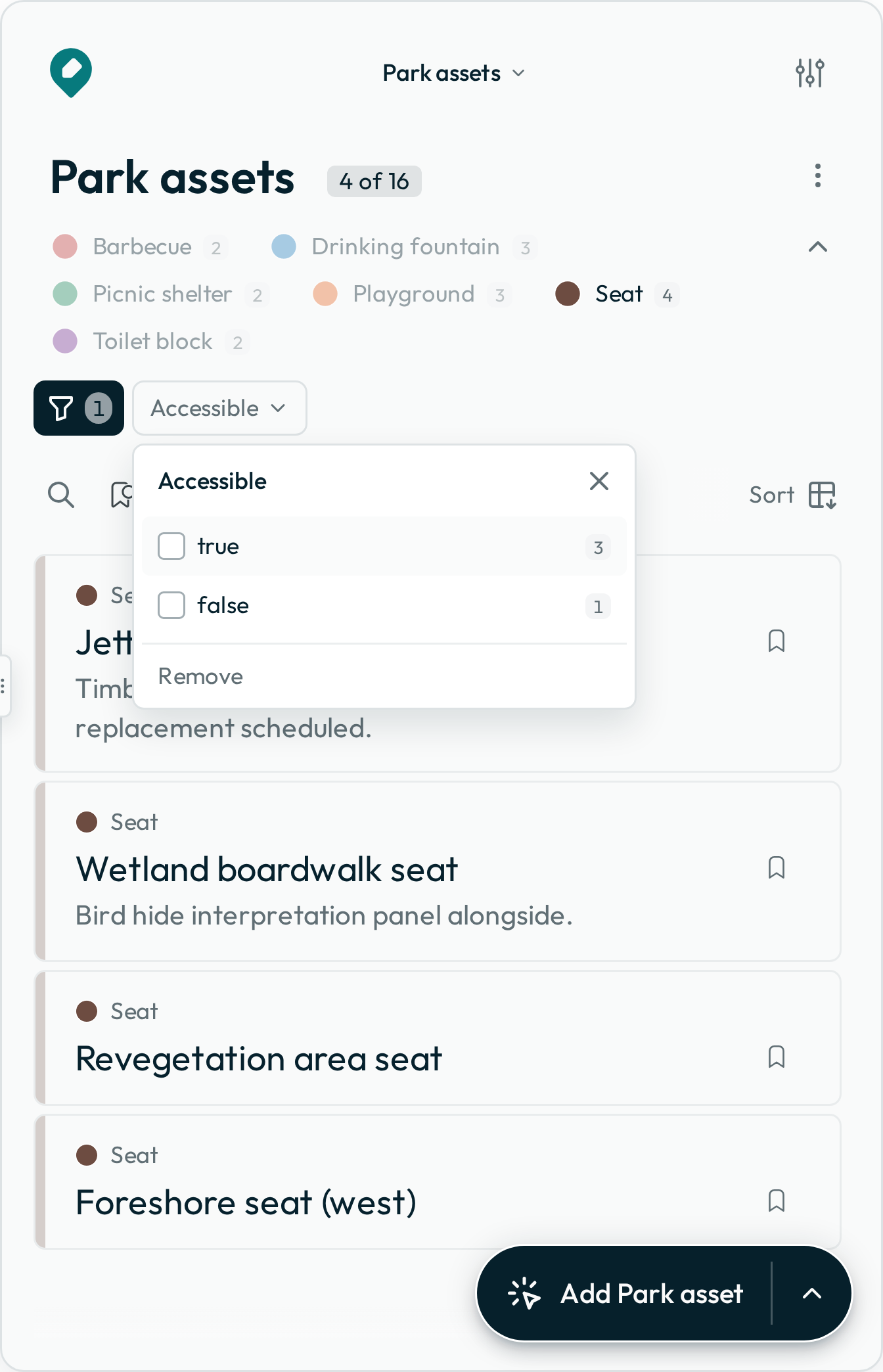
A feature must match every filter. So to show oak trees in poor condition, add a filter for species and a filter for condition. While the list has no filter, click the category value on a feature’s row to filter by that value.
When the list shows only some features, its count shows “N of M”. If someone shares a map with filters set, the map opens with those filters.
Legend
The legend below the layer name shows what each symbol means. If each symbol shows one value of a field, you can also use the legend as a filter. Click a value to show only that value. Then click other values to add them or remove them. To collapse the legend to one row of symbols, press the chevron at its end.
List order
The list is built in this order:
- Filters and Bookmarks keep the features that match every filter. While Bookmarks is on, only bookmarked features stay.
- If Nearby is on, it lists them by distance from your location. If it is off, your sort order applies.
- The result is the feature list. Search looks only in this list, and in the related records of its features.
Read a feature’s details
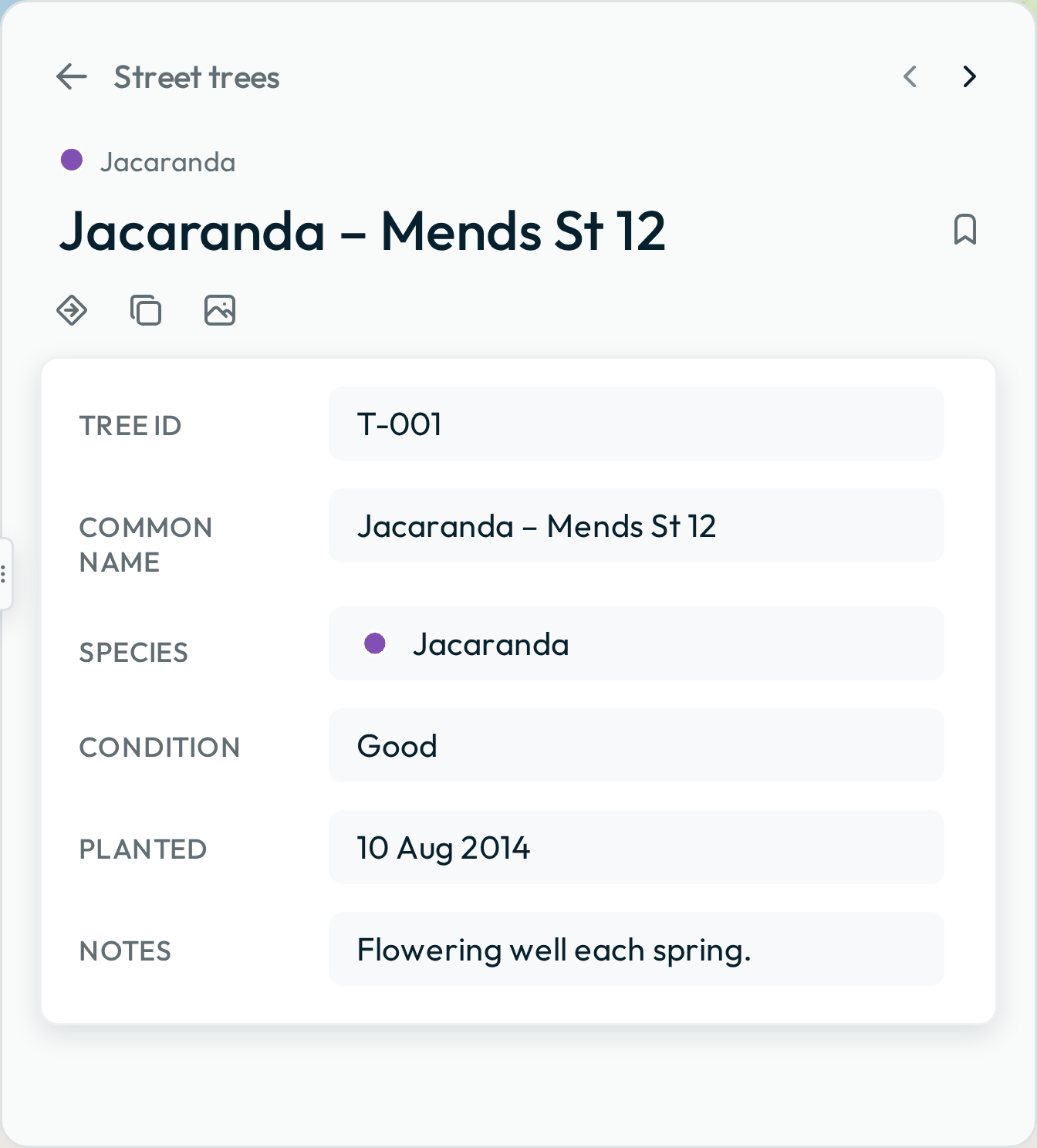
Open a feature to read all the information in its record. The bookmark button is beside the title. Below the title are the route, Street View and copy buttons. On a line or polygon layer, this row ends with the feature’s measurement and a ruler button.
Street View
To see Google Street View, press the Street View button. The view opens between the title and the fields, and it faces the feature. To close the view, press the Street View button again.
How Groundwork picks the photo
Groundwork uses an outdoor photo within 50 metres of the feature. For a polygon, Groundwork looks for a photo near a point inside the polygon. If Groundwork finds no photo, it shows a message in that space. The geometry of a feature is its point, line or polygon on the map. A feature with no geometry does not have a Street View button.
Ticks and crosses
If a title, category, description or status field holds only yes, no, true or false values, Groundwork shows the field’s name. A tick before the name means yes, and a cross means no. In any field, a true or false value shows as a tick or a cross.
Back arrow
To return to the list from an open feature, press the back arrow at the top of the panel. Your browser’s back button does the same. One press is enough, even after you use the arrows to go through many features.
Related records
On some maps, a feature has related records, such as the inspections of a tree or the jobs done on it. Each kind of record, such as inspections, is a dataset. On these maps, a row of tabs shows below the buttons in a feature’s details. Details is the first tab. Each tab after it is one dataset. The tab shows the number of records for that feature.
In a tab:
- To read a record, click it.
- To return to the list of records, click the row above the title of the record.
- To see the other records in the tab, click the arrows at the end of that row.
If a dataset has photos, each record shows its photo above its fields. The feature’s row in the list also shows a small photo from its most recent record.
When a tab opens, the last record in the dataset is at the top. To change the order, press Sort at the end of the row of tabs.
When you go from one feature to the next, the same tab stays open.
To choose the fields that the rows of a tab show, use the ⋮ beside the tab’s count. Groundwork saves this choice with the map.
New record
On a map that you can edit, you can add a record from its tab. For example, open a tree’s Inspections tab and press Add Inspection at the bottom right. The name on the button changes with the kind of record in the tab.
Fields that Groundwork completes
Groundwork completes some fields of the new record for you. It adds the link to the feature. If the records have dates, Groundwork sets the date to today. If the dataset holds the same type of geometry as the feature, Groundwork copies the geometry of the feature. If the dataset holds points and the feature is a line or polygon, the record gets a point on the feature.
- Press the add button to open a form.
- Complete the other fields.
- To save, press the tick beside the title.
Update
To change the values of an open record, press Update at the bottom right. If Groundwork cannot identify each record in the dataset, it does not show Update. A note above the fields says why. You cannot delete a record or share it.
Filter
You can also filter by these records. Their fields are in the Filter list, below the name of the dataset. For example, you can show only the trees with inspections that say Poor. To use only the latest inspection of each tree, tick Use each feature’s most recent Inspections record only. A date or number field of these records has the same periods or range as the layer’s own fields. For example, you can show the trees inspected this month.
Nearby and routes
Nearby
To see the features nearest to a place:
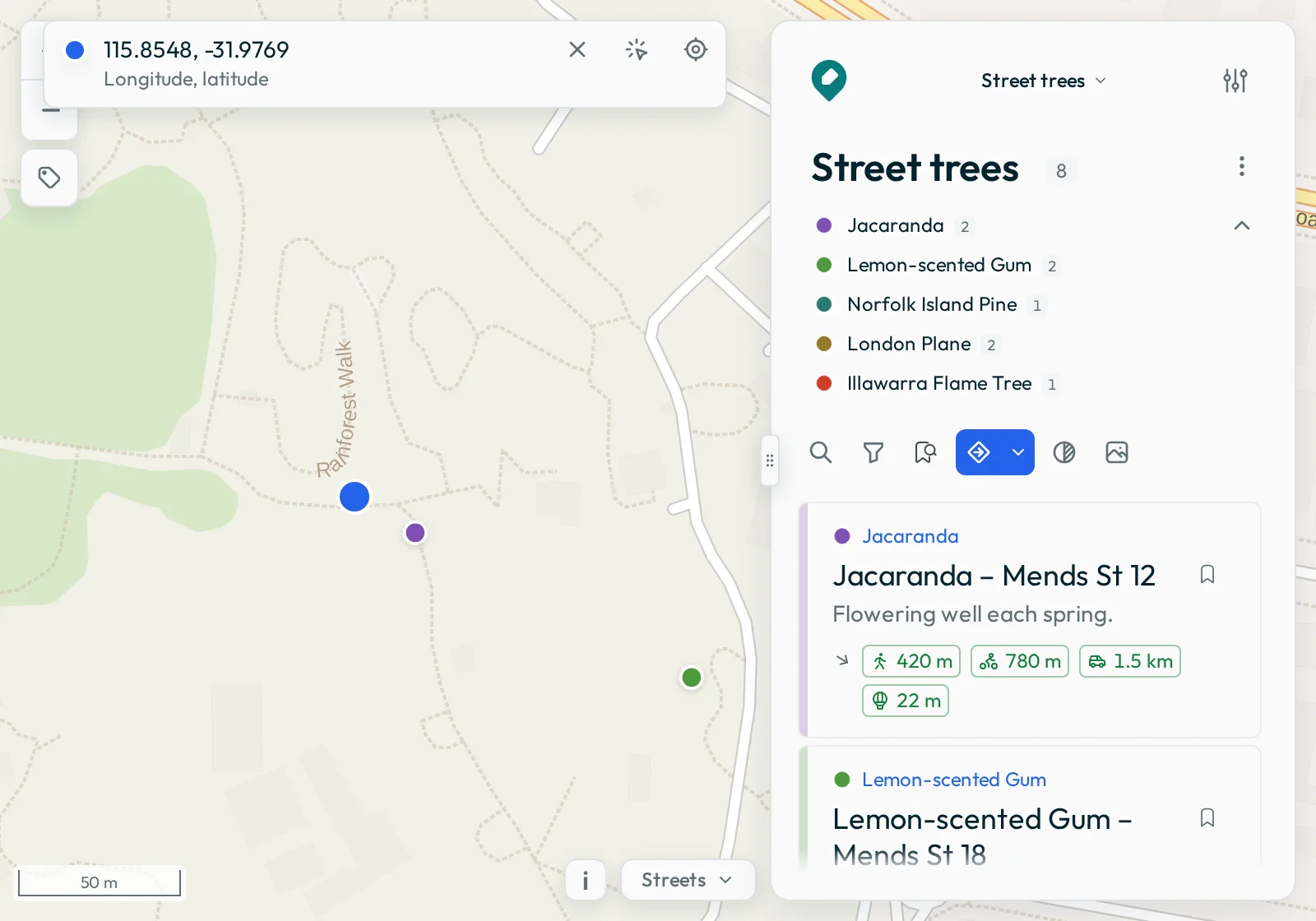
- Set a location in the location box at the top of the map.
- Press Nearby above the list.
Groundwork lists the features in order of distance from that location. To choose how Groundwork measures the distance, use the chevron beside the button:
| Choice | How Groundwork measures | What the list shows |
|---|---|---|
| Automatic, the default | Compares the distances to walk, cycle and drive | The five closest features, and up to five of your bookmarked features |
| Walk, Cycle or Drive | The distance for that one way to travel | The five closest features, and up to five of your bookmarked features |
| Straight line | The distance in a straight line | Every feature |
The map frames the pin and the nearest feature. Other features can be outside the view until you select one. To show the full list again, press Nearby again.
Routes
To draw a route from your location to a feature:
- Open the feature.
- Press the route button below its title.
- If no location is set, set one from the list that opens.
- Choose a way to travel.
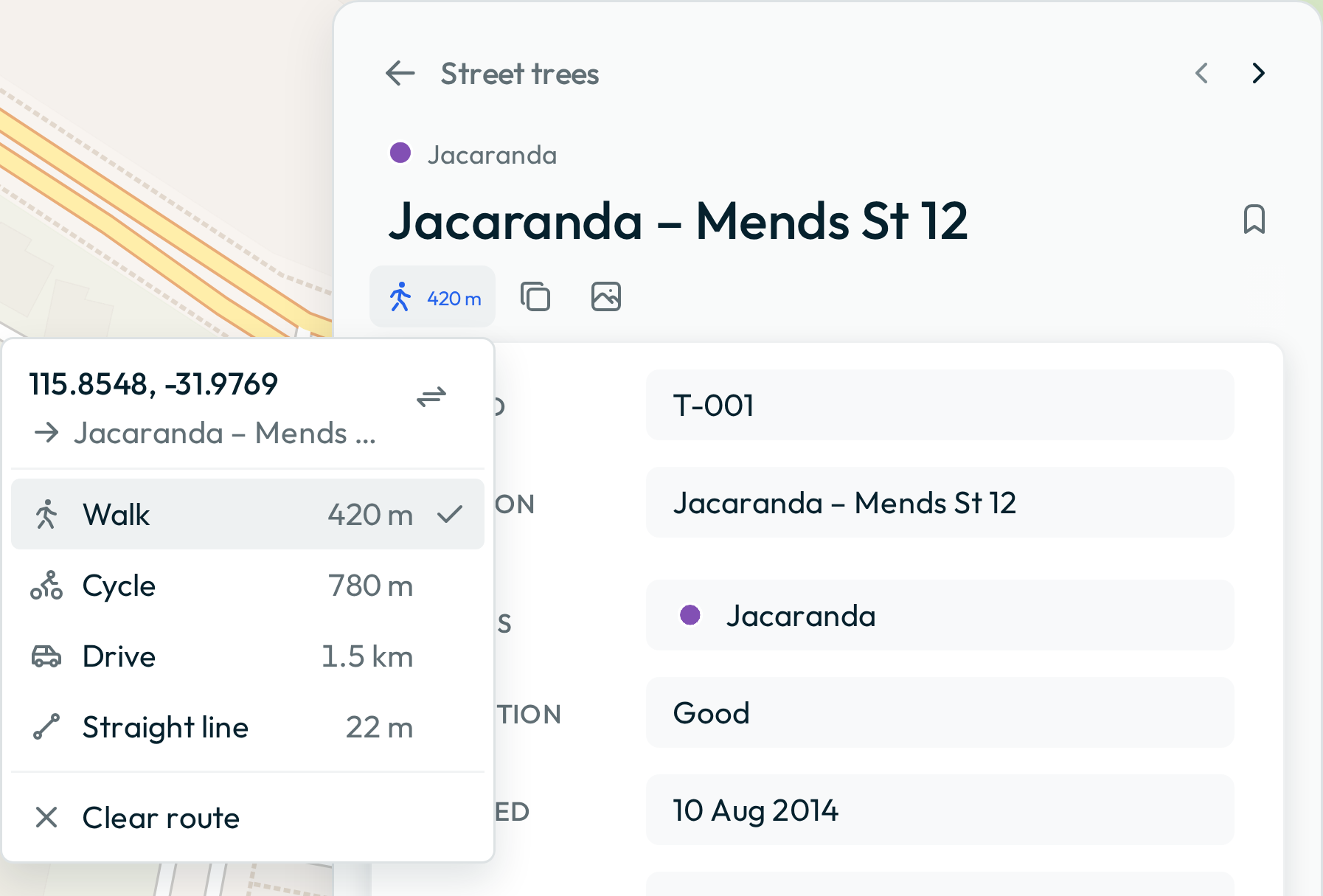
With Straight line, the map draws a direct line from your location to the feature, and the distance shows below the feature’s title.
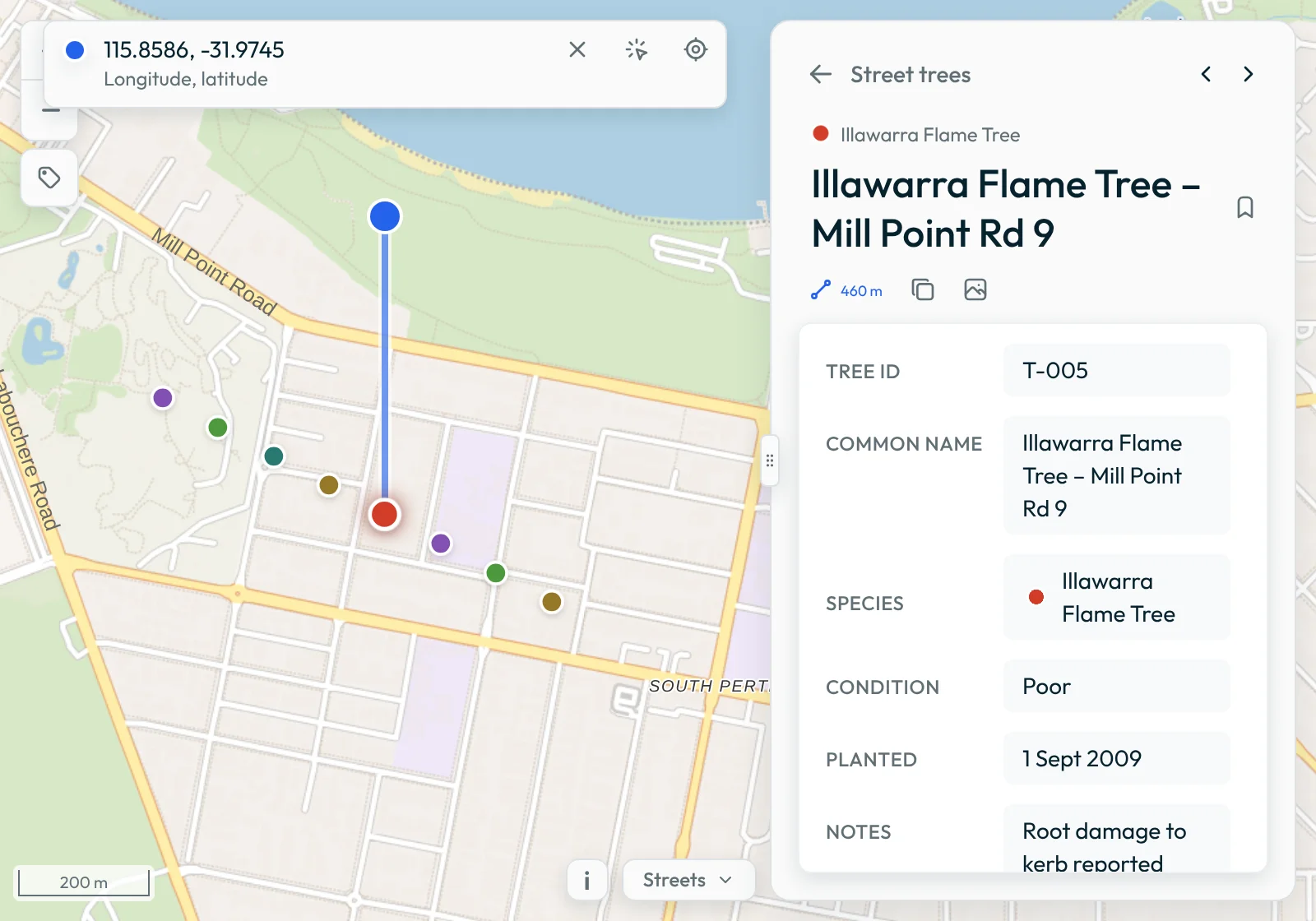
To remove the route, press the route button again. Then press Clear route.
Bookmarks
Use bookmarks to make a short list of features, such as the sites to visit today or the trees to check again. A bookmark does not change the data, and nobody else sees it.
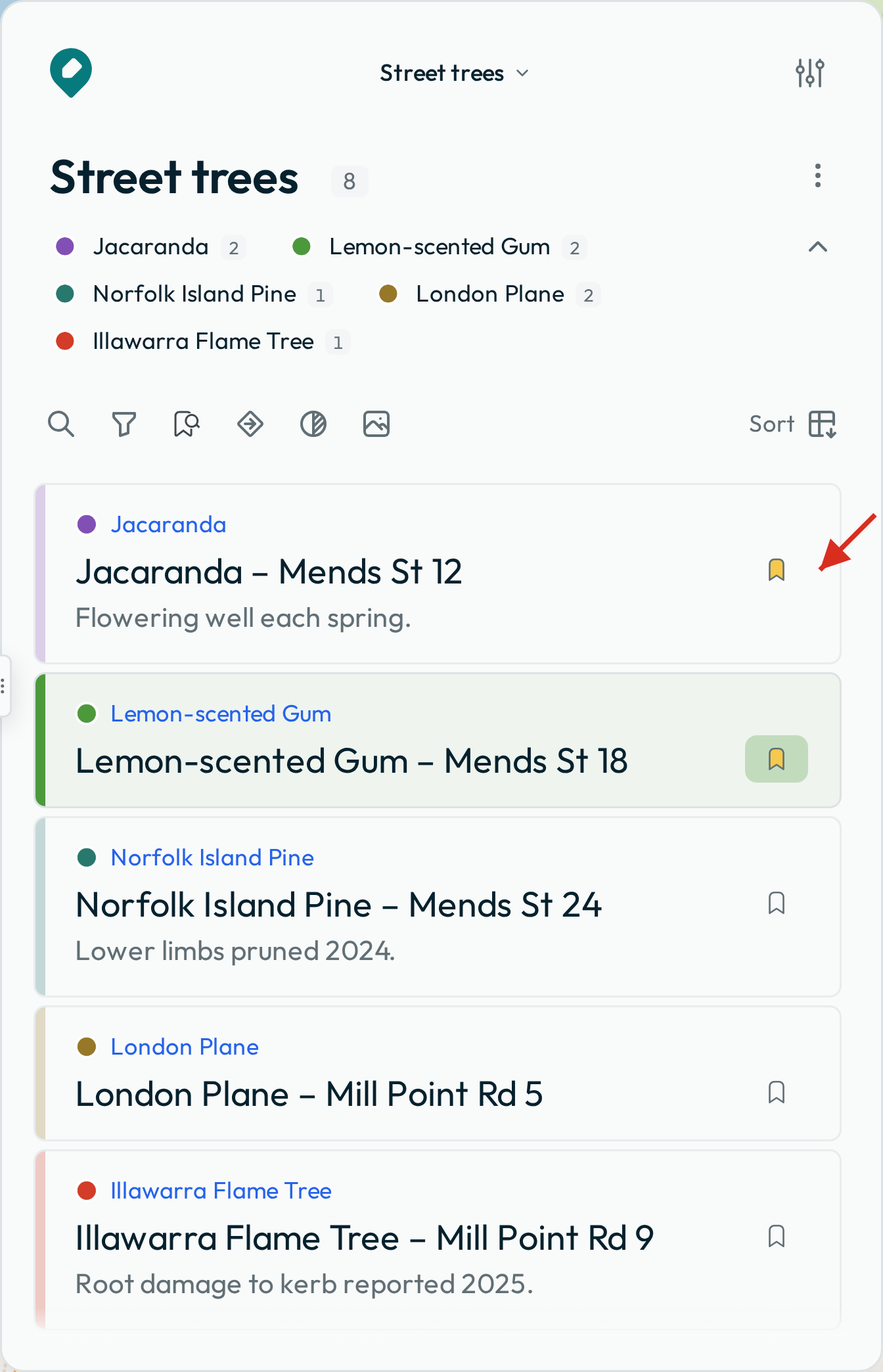
To add or remove a bookmark, press the bookmark button on a feature’s row or beside its title. On the map, a bookmarked feature has a small bookmark badge, except on a layer that shows only its bookmarked features. When labels show, the label of a bookmarked feature is bold. Groundwork keeps that label on the map when there is no space for all the labels.
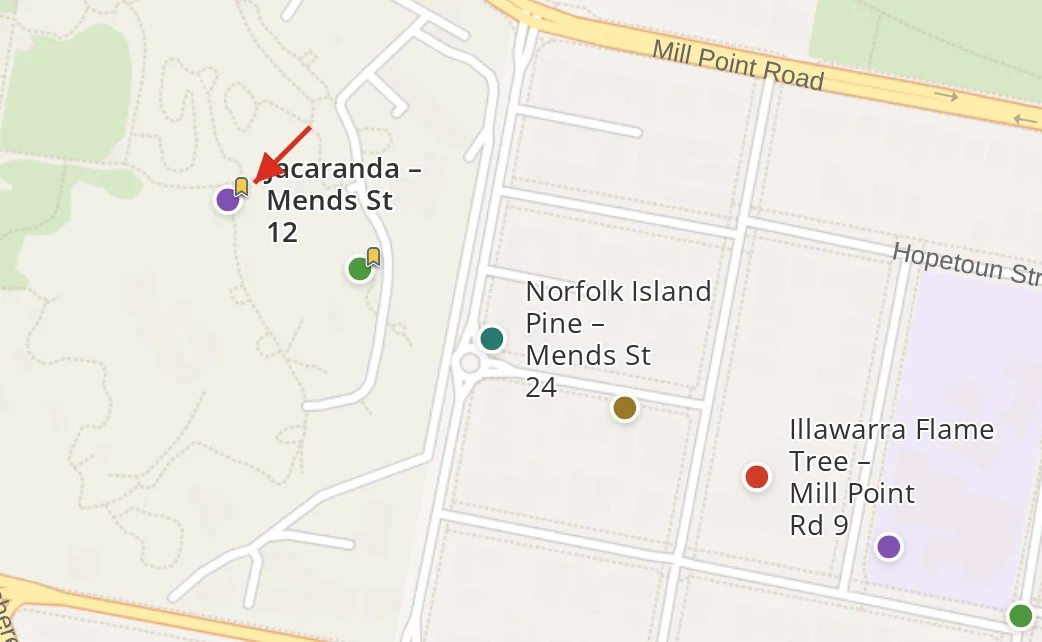
To see only your bookmarked features, press the bookmark button above the list. The list and the map then show only those features. Groundwork saves bookmarks in your browser on this device.
Choose the layer’s fields and style
Use the layer’s ⋮ menu to choose which fields describe a feature. The menu is beside the layer name at the top of the panel. Groundwork saves your choices for the layer.
Fields
Each row in the list shows the Title, the Category and the Description. The map shows the Label. If the features of a layer have related records, choose Status in the menu to show a value from those records on each feature.
If the title, category or description is a date, Groundwork also shows how far away that date is. For example, it shows 3 months ago or In 5 days.
Style
To choose how Groundwork draws the layer, use the Style row in the same menu. You can choose:
- A style that your administrator published with the map.
- Simple, for one plain colour.
- One of the layer’s fields, to give each of its values a colour.
Image layers
Some layers are image layers. Groundwork draws an image layer as an image, not as features. In the layer picker, an image layer has a stacked-squares icon. These layers have no features to list, so their ⋮ menu has none of these rows.
Next: Capture and edit features.