Capture and edit features
You can capture the tree that you just planted. You can also correct a species name, or delete the record of a stump that is no longer there.
Add a feature
To add a feature, press the add button at the bottom right of the feature list. On a layer of trees, for example, the button shows Add Tree.
Press the add button.
In the panel, choose how to place the new feature:
- Address or coordinates: type an address or coordinates in the location box.
- On the map: click the map where the feature goes.
- Device location: place the feature at your device’s position.
- Paste: place a feature that you copied.
Below them, From another layer copies a feature from another layer. Press it to choose the layer, then press a feature on that layer.
Complete the details.
To save, press the tick beside the title.
To choose a method before you start, press the chevron on the button’s edge.
How Groundwork picks the method
The next time that you press the button, Groundwork uses the method of the last feature that you saved. On a layer that you have copied from another layer, it uses From another layer instead. When your device finds a precise position, the button changes to Device location. The button never repeats Paste.
On a line or polygon layer, Groundwork adds a vertex at each place that you choose. A vertex is a corner of the line or polygon, or an end of a line.
- When the line or polygon has enough vertices, press Finish drawing to complete it.
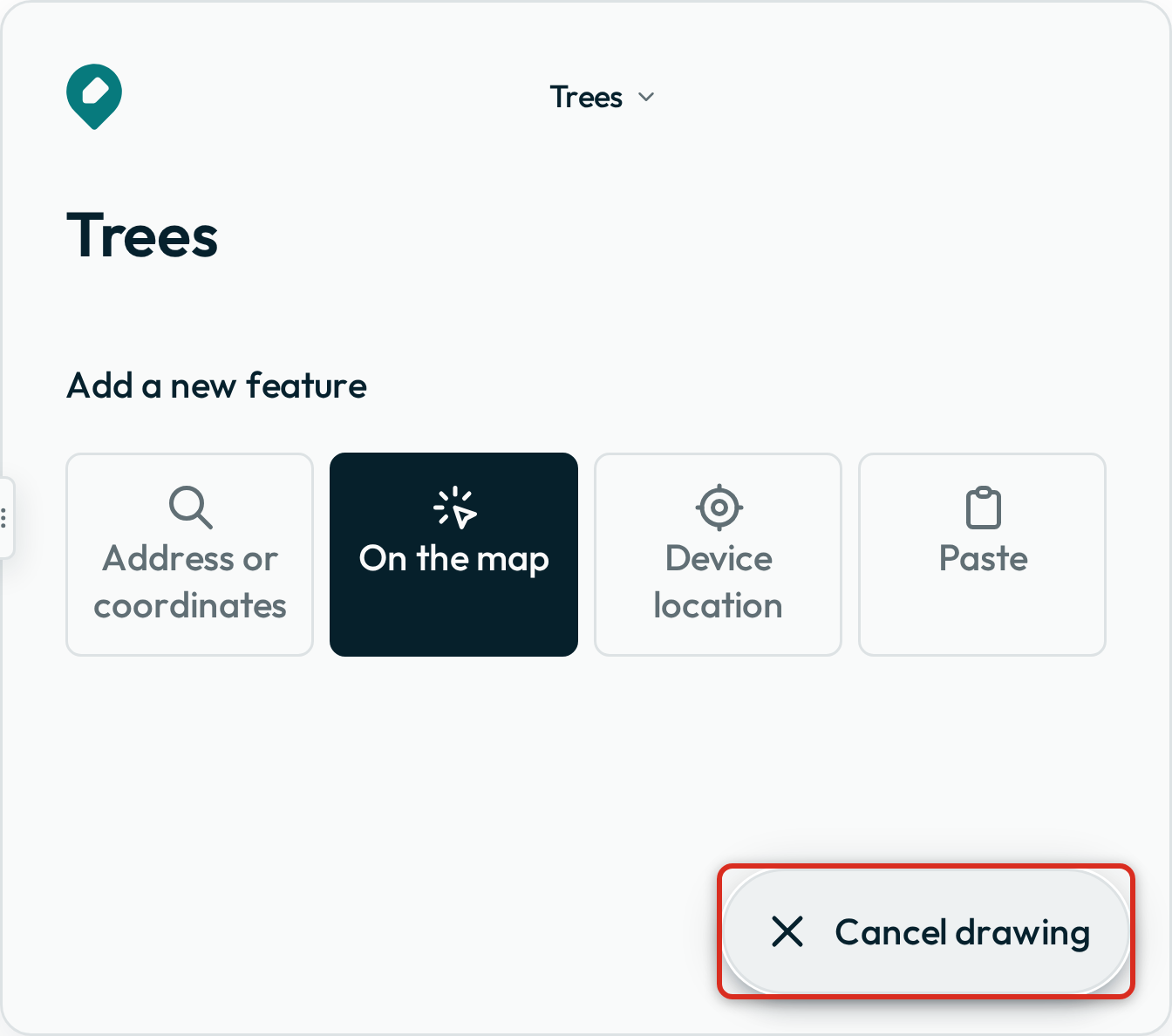
- To cancel the feature, press Cancel drawing.
Copy and paste a feature
To add many features that are almost the same, such as a row of fence posts, copy the first feature.
- Press the copy button below the first fence post’s title.
- Press the add button.
- Press Paste.
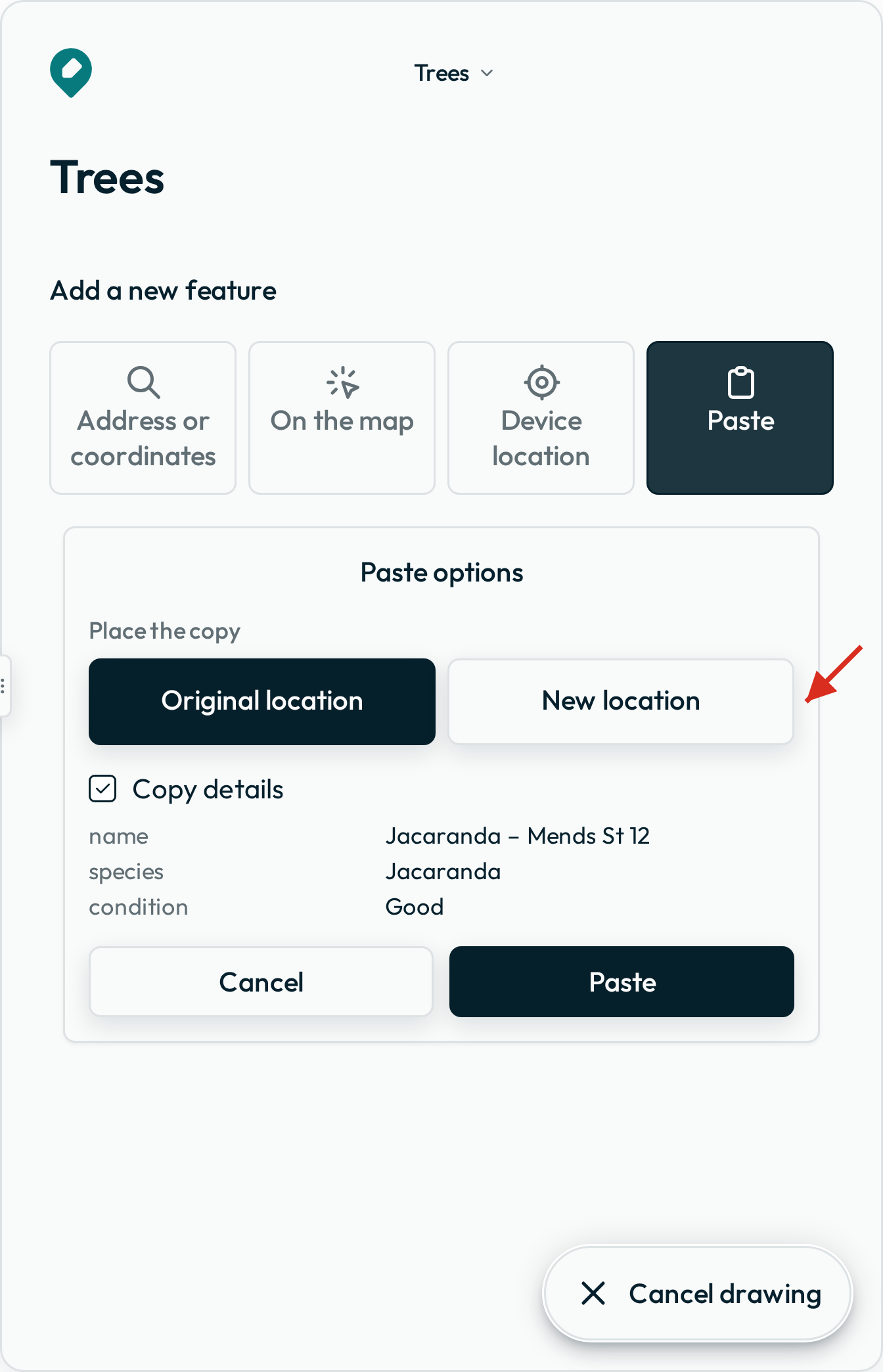
- In Paste options, choose where to put the copy:
- Original location: Groundwork places the copy at the same position as the original.
- New location: the copy follows your pointer. Press the map where you want it.
- Draw: Groundwork copies only the details. Then you draw the new line or polygon on the map.
- To paste a zone around the copy, such as 50 m around a tree, enter a distance in Buffer.
- To start the copy with empty fields, clear Copy details. While ticked, it lists the fields it fills.
- Press Paste.
Buffer shows only on a layer that takes polygons. It pastes the copy as a polygon. A negative distance shrinks a polygon.
Groundwork remembers your choices until you reload the page, and opens the options with them next time.
Update the details
- Select the feature.
- Press Update.
- Change the values.
- To save, press the tick beside the title. To cancel, press the cross.
If a value is not valid, Groundwork marks the field and shows the problem.
To update the next feature in the list, save your changes first. Then press the next arrow above the title.
Move or reshape a feature
- Select the feature.
- Press Update.
- Change the feature on the map:
- To move a point or a polygon, drag it. For a polygon, drag from inside it.
- To reshape a line or polygon, drag a vertex.
- To save, press the tick beside the title.
While you update a feature, right-click the map to see more actions. On a touch screen, press and hold. For a point, right-click the new place, and choose Move point here. For a line or polygon, right-click a vertex to see Delete vertex. Right-click the line between two vertices to see Add vertex.
Also good to know
Measurements
To see the measurements of a line or polygon feature, select the feature. Then press the ruler button below its title. The map shows the length of each segment that has room for its label. A segment is the straight line between two vertices. The map also shows the total length of a line, or the area of a polygon.
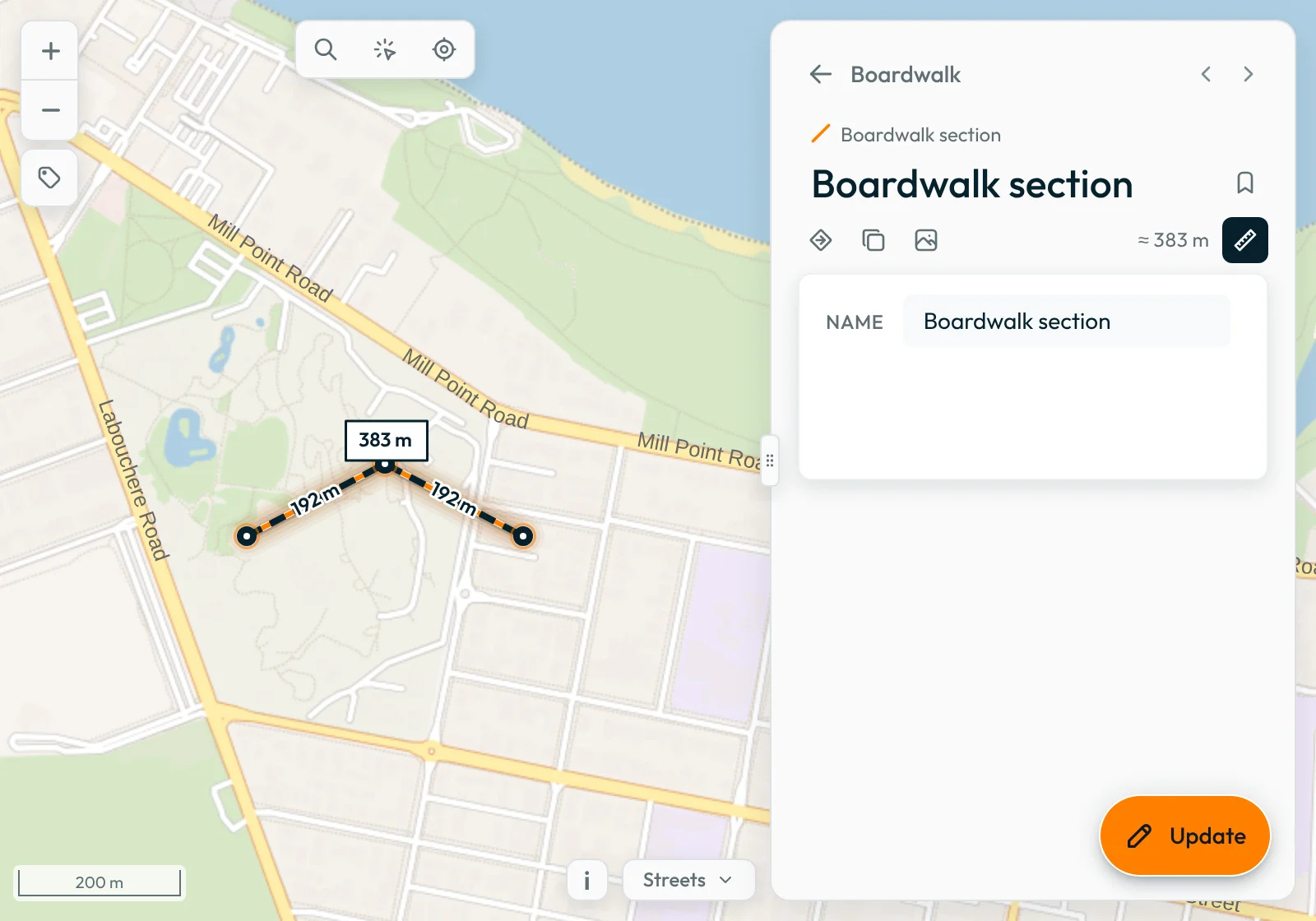
To see the measurements while you draw a new line or polygon, tick Show measurements in the drawing panel.
Delete
To delete a feature, press Update. Then press the trash icon beside the tick and the cross. Groundwork asks you to confirm before it deletes the feature.
Download
To save a layer to a file on your device, press Download in the layer’s ⋮ menu. The file includes edits that are not yet saved to the map’s data source. An image layer does not have Download.
Saved changes
Where your change saves depends on the map’s data source, not on your sign-in. On a map from a private Dropbox folder that you can edit, Groundwork writes the change to the folder. On a map from a map server that accepts changes, Groundwork sends the change to the server. Your teammates can then see it. Groundwork cannot save changes to a map from OneDrive, GitHub or a public Dropbox link. Saves to OneDrive are coming soon.
On a map from a private Dropbox folder, Groundwork shows the changes that your teammates save while you have the map open. The changes show within seconds.
On a demo map, Groundwork saves your edits on your device only. When you reload the page, Groundwork removes the edits.
Next: Troubleshooting.