Share your map
When the map is ready for your team:
- Open the settings menu in the map header.
- Press Share.
- Copy the link.
- Send the link as you usually do, such as by email, in Teams, or on an intranet page.
When your team clicks the link, the map opens on your data, with your configuration. The User Guide tells your team what they can do next.
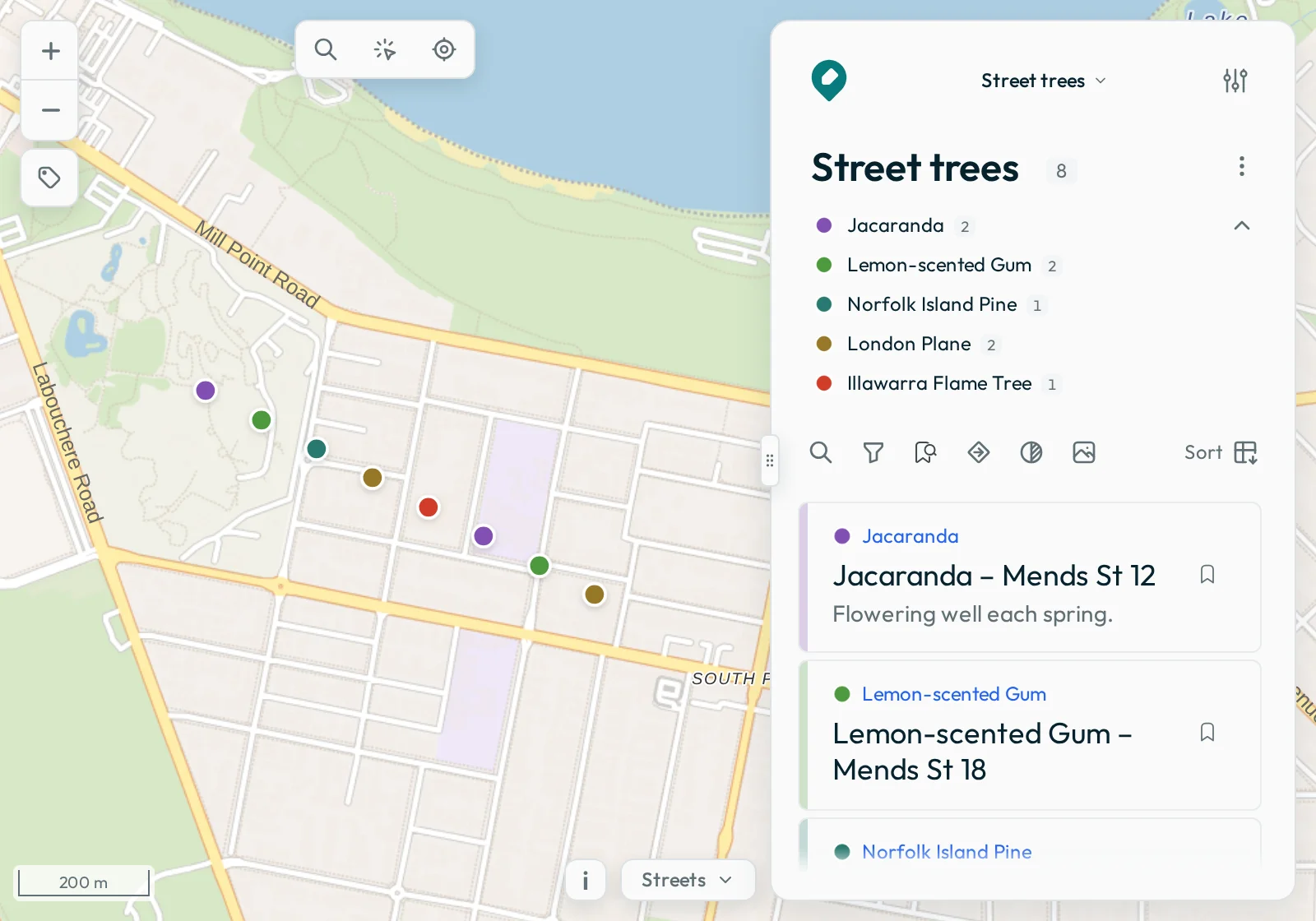
What the link includes
The link always includes the map’s name, its data source and its basemaps. So a shared map always opens with a basemap behind the data. The link also includes:
| Setting | What the link holds |
|---|---|
| Map extent | The area that you left the map on |
| Layer settings | For each layer, whether it shows, your choices for title, category, description, label, status and style, any symbol that you set yourself, and the sort order of its feature list |
| Filters | The filter buttons that you added to each layer, and the values that you ticked. A button with nothing ticked is included too |
| Active layer | The layer whose features fill the panel |
To leave one of these out, open What this link includes in the share window and untick it.
What a link leaves behind
| Left out of the link | Why |
|---|---|
| Your set location | It can be the coordinates of the place where you are, so the link leaves it out unless you tick Location in What this link includes |
| Bookmarks | Each bookmark belongs to the person who made it. A person who opens your link sees no bookmarks from you, and their own bookmarks do not change |
| Layers from files opened directly on a device | A link cannot point to their source, so the dialog lists each layer that the link leaves out. If your team needs that data, publish it to a cloud folder |
| Unit preferences (metric or US) | They belong to the device, so each person keeps their own |
Decide who can edit
Each map has a Sharing setting, which decides what a link to the map gives the people who open it. You choose it when you make the map, and you can change it in the Map section of the settings menu. The share window’s What this link includes section shows the setting, but does not change it.
| Sharing | What the people who open a link get |
|---|---|
| View only | The map is view-only. Recipients can browse, search, filter and download, but Groundwork does not show the editing tools. |
| Sign in to edit | Each recipient signs in with Dropbox or Microsoft before the map opens. After sign-in, Groundwork shows the editing tools on each layer that it can save to. |
| Demo | Everyone gets the editing tools, but Groundwork keeps each change on that person’s device only, and the change is gone when they reload. Your own map works the same way. |
Every link from the map has its setting. So a link that you send later gives the same as one that you sent before, unless you change the setting. A person who opened your link and shares the map again passes on what your link gave them, and never more.
Groundwork asks before it changes a map to or from Demo. A demo map that becomes a standard map loads again from its data source, so the edits that you made on it are gone.
For a map from a private Dropbox folder, you cannot choose View only. Each link asks the recipient to sign in with Dropbox, and a Microsoft sign-in is not enough. This is also true for a demo map.
A person who can open the folder can also read your project file. See what the project file can reveal.
Other share choices
These are in the share window’s What this link includes section.
- Require a location to start: tick it if your map answers the question “what applies at this address?”. The link then opens on a dim map that asks for the person’s location before the panel and layers show. To skip the question, they can press Show the map anyway. So nobody is stuck when their device does not share its location.
- Travel mode: choose how Nearby measures for the people who open the link: Automatic, Walk, Cycle, Drive or Straight line. To turn off routing for the link, choose None. A new link with a travel mode turns routing on again.
Check the link before you send it
Open the copied link in a private browsing window. Your usual browser cannot show you what the link does, because the map is already yours in that browser. There, you keep the editing tools whatever the map’s Sharing setting, and you are already signed in. A private window shows the sign-in prompt or the view-only map exactly as a recipient sees it.
Send an updated link
When only the data changes, keep the link that you sent. Groundwork reads the source each time a map loads, so new and updated features show automatically.
When the configuration changes, such as different filters, a different start area or different field choices, configure the map again and send a new link. When the recipient opens it, Groundwork updates the map that they already have, so they still have one map.
If a link shows “A different version of Groundwork made this link, so Groundwork can’t open it.”, send a new link from the same map. An update to Groundwork can change the format of links, and a link sent before such an update does not open.
| What changed since you sent the link | What to do |
|---|---|
| Only the data | Keep the link. Groundwork reads the source each time the map loads. |
| The configuration, such as filters, start area or fields | Configure the map again and send a new link. It updates the map that the recipient already has. |
| Groundwork was updated, and the link no longer opens | Send a new link from the same map. |
Embed Groundwork in another page
Give the frame enough space for the map and the Data panel. When you scroll the page over an embedded map, the map does not zoom. To zoom, hold Ctrl while you scroll, or Command (⌘) on a Mac.
Embed a map only to view it. If your team must capture or change data, give them a full-page link. To edit a map from a cloud folder, a person must sign in. When a person signs in, Groundwork opens the Dropbox or Microsoft sign-in page. Those pages can fail to open inside an embedded map.
Next: Troubleshooting.