Connect a data source
A map in Groundwork is a connection to one data source, plus the configuration that you add to it. You choose the source once, when you create the map. To connect to a different source, create another map.
Create the map
- Click the map name at the top of the right-hand panel.
- Choose Create new map.
Groundwork opens a page that shows the demo maps as cards under Try a demo. Below them, the data sources are tiles under Or connect your own data. Groundwork creates the map when you choose a tile and complete the steps for that source. If you close the page before you choose a source, Groundwork discards the map. It does not keep a part-made map.
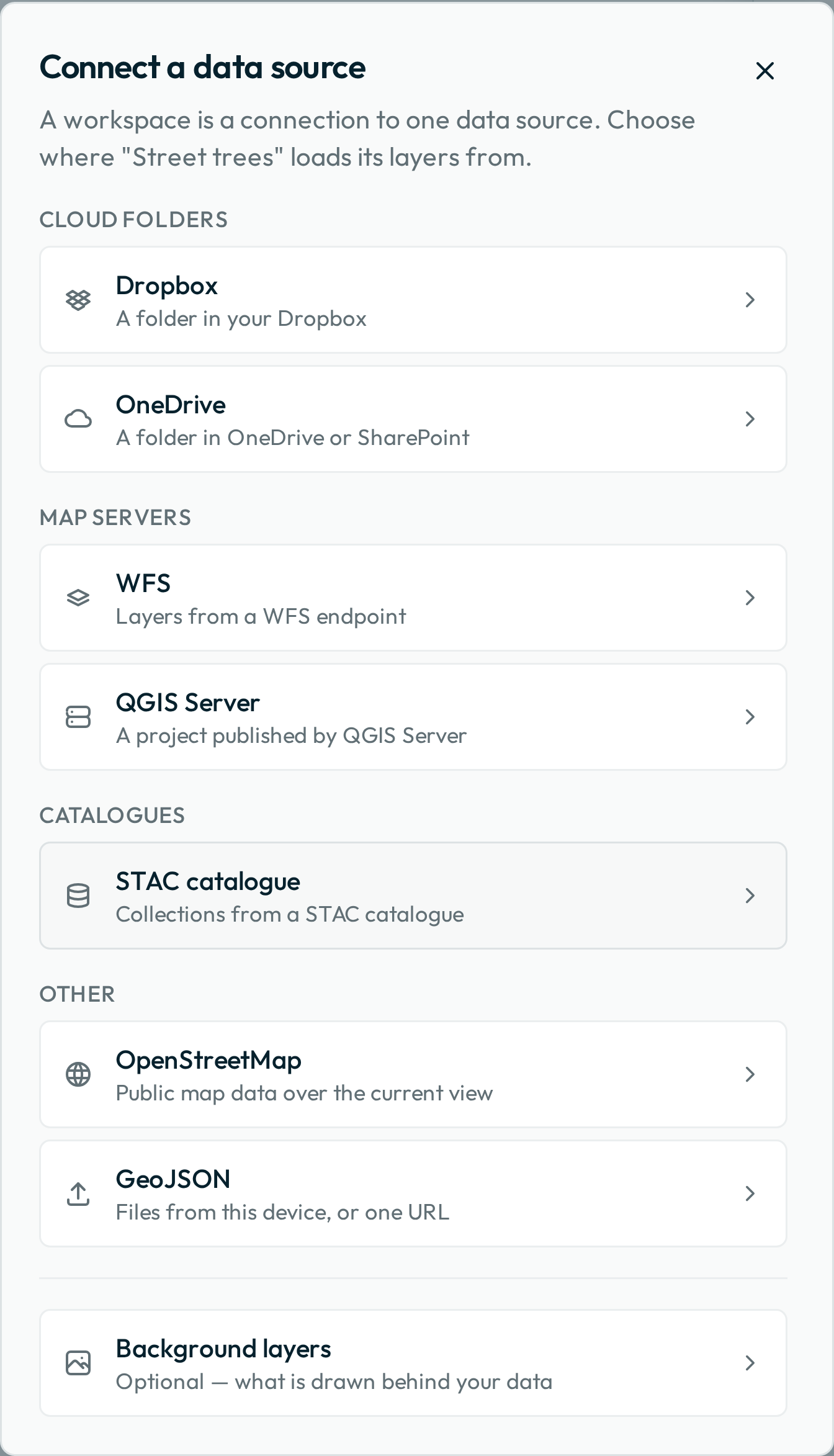
Groundwork names the map for you. Until the map connects, its name is New map.
How Groundwork names the map
Groundwork then names it after its source:
| How you made the map | Groundwork names the map after |
|---|---|
| A project that you chose in the Dropbox folder browser | The name of its project file |
| A QGIS project opened from this device | The title of the project |
| A GitHub link | The name of the folder that the link publishes |
| Exactly one layer added | The name of that layer |
| Several layers added | The address of the service, or the title of an ArcGIS Online map |
| Any other Dropbox or OneDrive folder | The website in the share link, such as www.dropbox.com, because the link does not include the folder name |
Groundwork tidies the name that it takes from a file, a project title or a layer. For example, street_trees.geojson gives a map called Street trees. Groundwork does not change the names of the layers.
You can rename the map at any time with Rename in the settings menu.
Where your team’s edits go
Each source decides whether Groundwork can save your team’s edits, and where:
| Source | Where your team’s edits go |
|---|---|
| Dropbox folder | To the folder, if it is private, the person is a member with edit access, and they sign in |
| OneDrive folder | Not saved yet. Saves to OneDrive will be available soon |
| GitHub | Not saved. Your team cannot edit layers from files. Groundwork refuses a record’s save and lets the person download the change |
| WFS | To the server, if it supports transactions |
| OGC API - Features | Nowhere. Your team cannot edit these layers |
| ArcGIS Online | Nowhere. Your team cannot edit these layers, unless you pasted a WFSServer address, which works as WFS does |
| QGIS Server | To the server, if it accepts WFS transactions |
| STAC catalogue | To the server of a WFS item, if it allows it. Your team cannot edit the other items |
| Files | Kept in the browser that added the layers. A share link cannot include them |
Choose a source
Choose the tile for your source under Or connect your own data, on the page that Create new map opens.
Cloud folders
This source is a folder in Dropbox or OneDrive that holds a QGIS project and its data files. Start with this source. It needs no server, and a QGIS project holds more than a server can send, such as symbology, labels and display fields. People with edit access to a private Dropbox folder can sign in and save changes to it. Saves to OneDrive will be available soon.
Prepare data in QGIS tells you how to make the project. Publish to a cloud folder tells you about the folder layout and the sharing. It also says what you lose with a folder of GeoJSON files and no project.
GitHub
This source is a folder in a public GitHub repository. The folder holds a QGIS project and its data files, or only data files, as a cloud folder does. Paste the address of the repository, a folder in it, a .qgs or .qgz file, or one data file. You can also paste a raw.githubusercontent.com address for one of these files. A link to one data file publishes that file as one layer.
A public repository needs no sign-in, so the map opens for anyone who has the link. The exception is a map whose Sharing setting is Sign in to edit.
If your team must capture data, use a Dropbox folder. Groundwork cannot save changes to a repository, so it does not show the editing tools for a layer from a file in it.
WFS
This source is a WFS endpoint. To add its layers:
- Paste the server URL. Groundwork lists the layers that the server advertises.
- Choose the layers. The list has a filter box, and you can choose several layers at once.
Groundwork loads the layers live from the server. If the server supports transactions, Groundwork writes your team’s edits directly to the server. Each time the map opens, Groundwork loads the same layers that you chose.
How a large layer loads
If a layer has too many features to load completely, Groundwork loads only the part in the current map view. It loads the part again when you move the map outside it. It also loads the part again when you zoom in on a view that had too many. If the view also has more than 2,000 of its features, Groundwork loads none of them. A line below the layer name asks you to zoom in.
Let fewer people or servers write to the data at once. If the server keeps that data in a GeoPackage, use a single server instead of several copies. Or move the layers that people edit to PostGIS.
OGC API - Features
OGC API - Features is the newer standard that follows WFS. Paste one of the addresses that the service publishes: its landing page or its collections address. Groundwork finds the other address. Then it lists the collections, with a filter box. Each time the map opens, Groundwork loads the same collections that you chose.
There are two kinds of collection, and you can choose both:
- Features: Groundwork makes an ordinary layer of points, lines or polygons. A small collection loads completely. A larger collection loads only in the current map view, so zoom in to load it.
- Imagery: the list marks these collections
Tiles. Groundwork draws an image from the service’s own map tiles. The image has no feature list, and you cannot select or edit anything in it. The service sets how it looks, so styling that you set in Groundwork does not apply to it.
Groundwork can only read from this kind of service, so you cannot edit either kind. In the layer picker, a layer of features shows a padlock, and an image layer shows a stacked-squares mark. The list also shows each collection that publishes neither kind, and the service’s own index of its datasets. These show the reason beside them, and you cannot choose them.
ArcGIS Online
This source is a public map or layer on ArcGIS Online. Paste one of these addresses:
- The item page of a Web Map, or its address in the map viewer.
- A dataset page on a Hub or open-data site.
- The item page of a feature layer.
- A FeatureServer address, or the address of one layer in it.
- An OGCFeatureServer or WFSServer address. Groundwork reads it as an OGC API - Features or WFS source.
Except for a FeatureServer, OGCFeatureServer or WFSServer address, the website part of the address must end in arcgis.com. Groundwork reads only items that are shared with everyone.
Groundwork reads each layer from its feature service in ArcGIS Online, so the layer does not need an OGC API - Features or WFS version. If the map filters a layer, Groundwork applies the same filter. The list shows a layer that Groundwork cannot read as Not shown, with the reason below its name, and you cannot choose it. Each time the map opens, Groundwork loads the same layers that you chose.
Groundwork draws each layer with the style that it has in ArcGIS Online. If Groundwork cannot read that style, it uses its own default style.
QGIS Server
This source is a QGIS Server project URL, such as http://your-server/qgis?map=/projects/street-trees.qgs. Groundwork reads the project’s layers and their styling almost as it reads them from a folder. Each time the map opens, Groundwork loads the full current project again. So a layer that you add to the project later shows for your team, and nobody must create the map again.
STAC catalogue
This source is a STAC catalogue URL. Groundwork lists the collections that the catalogue advertises. Each time the map loads, Groundwork loads the same collections and items that you chose. If a collection keeps its data in items, it opens to show those items, newest first. Each item that you choose becomes a layer. What your team can do with an item depends on the format beside it:
| The item’s format | What your team can do with it |
|---|---|
| GeoJSON, GeoParquet or FlatGeobuf | View its features. The layer shows a padlock, and your team cannot edit it |
| PMTiles or COG | View an image of the data. There is no feature list, and your team cannot select or edit anything |
| WFS | Use it like any other WFS layer. Groundwork saves edits to its server if the server allows it |
| WMS | View the images that the service draws. There is no feature list, and your team cannot select or edit anything |
Files
Drop files directly, or click to find them on your device. You can add GeoJSON, GeoParquet, FlatGeobuf or GeoTIFF data, a QGIS project with its data files, or .sld or .qml style files. A GeoParquet or FlatGeobuf layer is read-only. A GeoTIFF layer is gone when you reload the page. Add the file again to see it. The records of a QGIS project’s related datasets are also gone when you reload.
You can also paste the address of a GeoJSON file on the web. To add files as layers to an open map, drop them on the map at any time.
To share this data with a team, publish it to a cloud folder. Groundwork stores files that you add in this way only in the browser that opened them, except a GeoTIFF layer, which it does not store. A share link cannot include them. See what a link leaves behind.
Basemaps
Each source’s panel has a Basemaps choice, beside Sharing at the foot of the panel:
- Groundwork: Streets and Aerial gives the map a street map and aerial imagery.
- Esri: World Imagery and World Basemap, offered only for an ArcGIS source, gives the map Esri’s imagery and street map. Esri licenses these basemaps under its own terms of use.
- A folder of your source, such as Basemaps folder: Aerial and Topographic, gives the map the layers of that folder.
- None shows only your data.
Groundwork offers this choice once it has read your source. That is after Fetch on the QGIS Server and STAC catalogue panels, and after Open on a cloud folder. When a project in a cloud folder has folders, Groundwork stops before it loads the layers, so you can choose. Press Load layers to go on. A project with no folders opens in one step.
How Groundwork reads a basemaps folder
Groundwork lists each folder at the top level of the source. A folder is a group in a QGIS project, or a catalogue inside a STAC catalogue. Groundwork does not list a folder inside another folder. The layers in the folder become the map’s basemaps, and the panel leaves them out of the list of layers to add.
When your source has a folder named Basemaps, Groundwork chooses it for you. If it has none, Groundwork chooses the first group that QGIS shows only one layer of at a time (a mutually exclusive group). This applies to a group published by QGIS Server. You can still choose something else.
Each item at the top level of the folder is one basemap in the picker. An item that is a group draws all its layers together, except a layer you switched off inside the group in QGIS. The picker opens on the item you left switched on, or on the first item. Groundwork reads the folder from your source each time the map opens. If you rename or remove the folder, the map has Groundwork’s basemaps instead. On a map from QGIS Server, which shows every layer of the project, the folder’s layers then appear in the map’s list of layers.
You cannot change the choice after you create the map. Your team changes between the map’s basemaps with the control at the bottom of the map.
Next: Prepare data in QGIS. If your source is already ready, go to Configure the map.